

AI search + multicamera review
Find the moment.
Review every angle.
Export the clip.
Direct Play puts recordings from multiple cameras on one timeline. Search footage by description, review candidate moments across synchronized angles, and export the selected range as separate files.
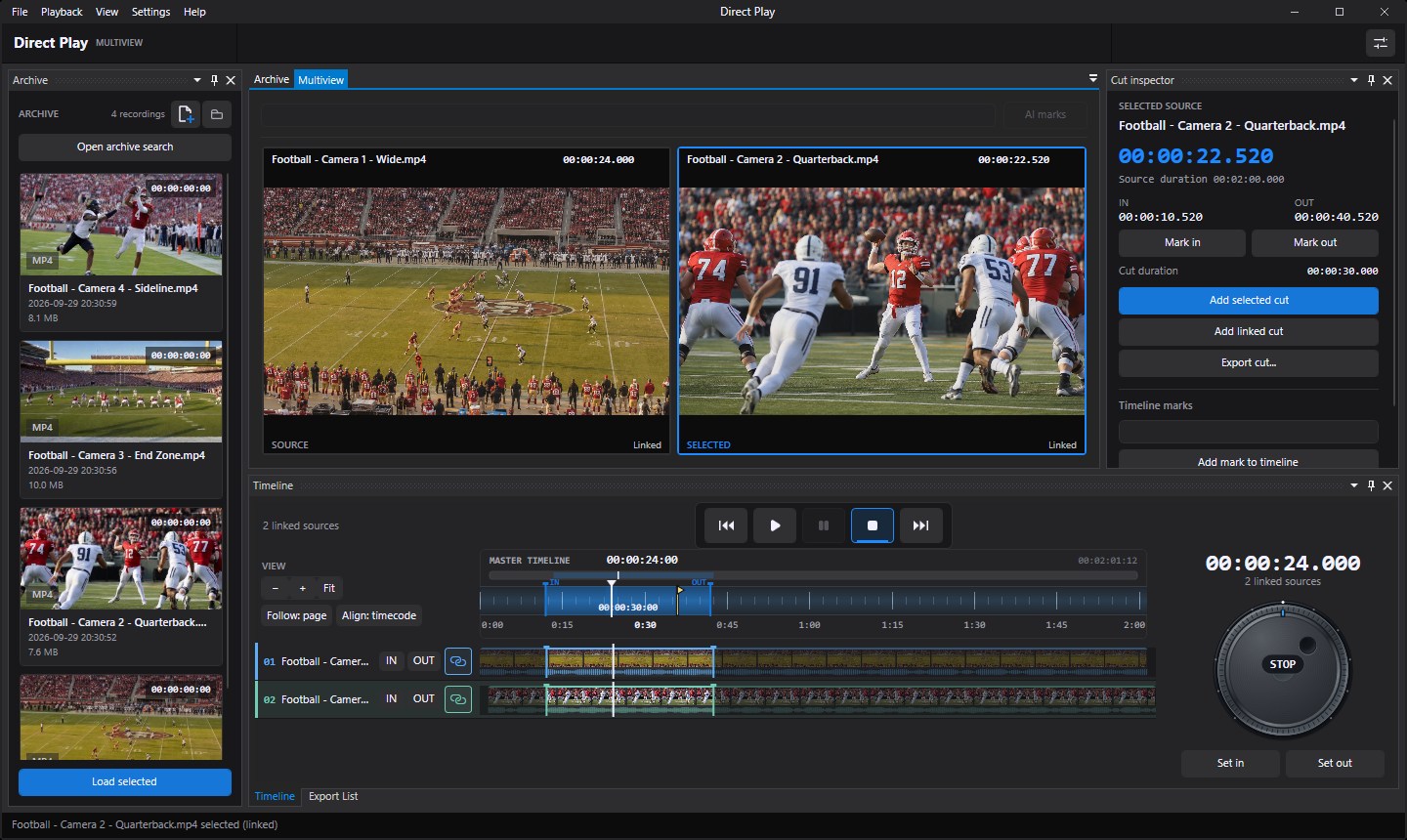
Optional AI search
Search footage by description
With a configured AI search service, enter a description such as "basketball player near the basket." Direct Play returns candidate moments in the archive or adds marks to loaded recordings. Review each match before setting IN and OUT.
Workflow
Find, review, export
Search the archive, compare cameras, and add the cut to the export queue in one session.
Find the recording
Search by name, date, time, or starting timecode. Load only the files you need to review.
ARCHIVEReview the angles
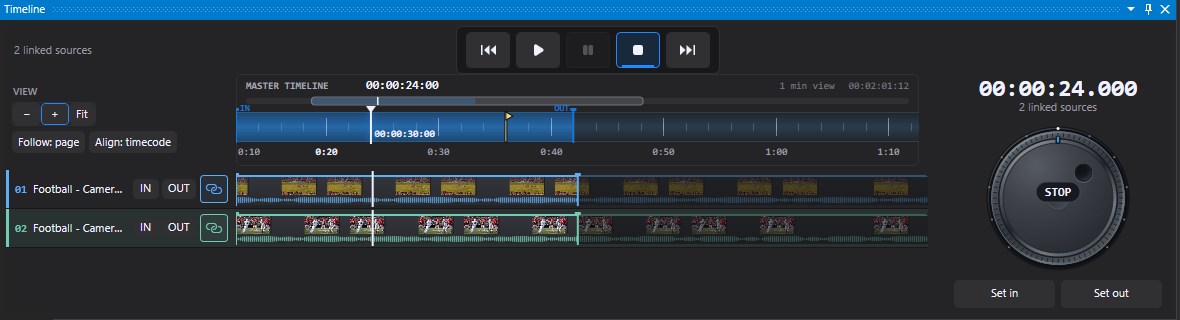
Link cameras for shared playback. Line them up by timecode when the recordings support it, then jog frame by frame to check the action.
MULTIVIEWExport the cut
Set IN and OUT for one camera or add a linked cut. A linked cut creates a separate file for each included camera.
EXPORT LISTProduct views
A look at the workspace
Select a view to see the desktop multiview, archive, or web dashboard.
Linked cameras follow the same master position.
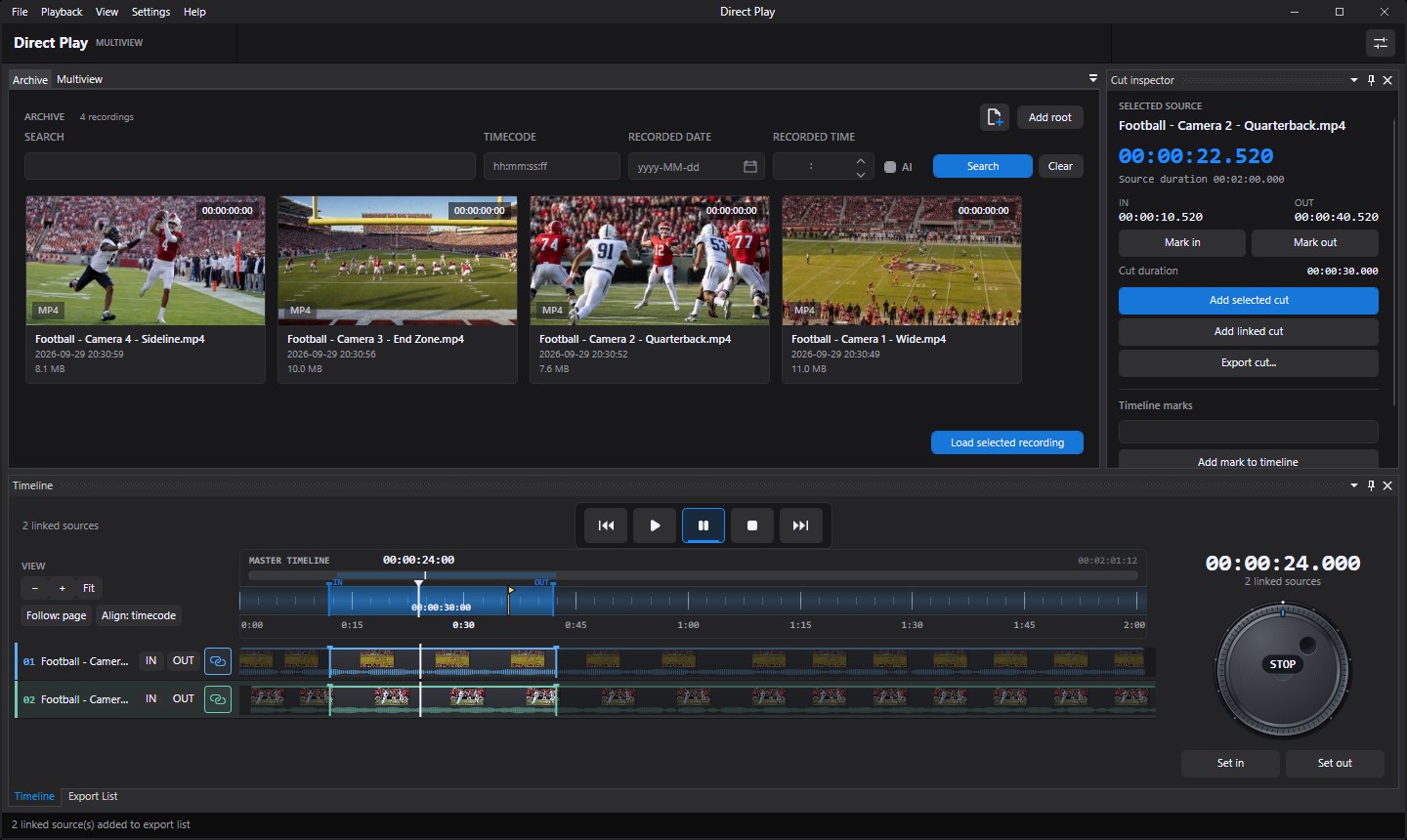
Search by name, date, time, or starting timecode.
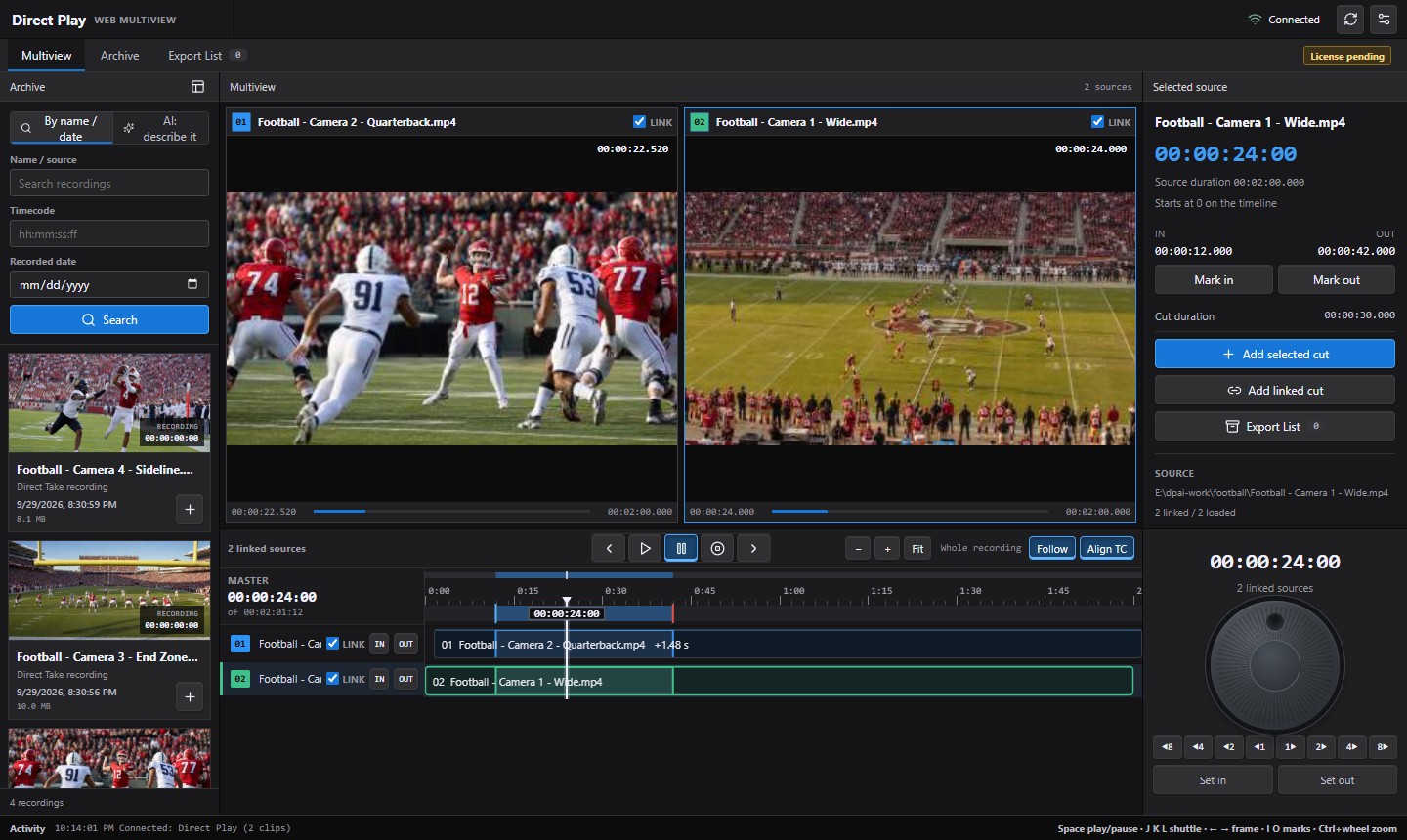
The dashboard controls the current Direct Play session.
Works with Direct Take
Record with Direct Take.
Review with Direct Play.
On the same Windows workstation and user account, Direct Play reads the archive locations and recording metadata registered by Direct Take. New recordings are ready to find without rebuilding the archive by hand.
Explore Direct Take ↗Direct Take
Records the camera feeds
Shared local archive
Stores paths and recording metadata
Direct Play
Searches, reviews, and exports clips
Direct Take is not required. Add media files directly or add any supported recording folder as an archive root.
Timecode alignment
Line up cameras that started at different times
When linked recordings have overlapping time-of-day timecode, Direct Play places each camera at its recorded start time on the master timeline. A linked IN/OUT range then covers the same moment in each exported file.
- Frame stepping and jog/shuttle control
- Named timeline marks for review
- One output file per linked camera
Desktop and browser
Control the workstation from a browser
Direct Play reads and exports media on the Windows workstation. The web dashboard connects to the running app and shares its sources, playback state, and export queue. Teams can also build their own controls with the REST API.
Load files, review footage, add marks, and export cuts.
Search the archive, control playback, and run exports.
List sources, control playback, search the archive, and manage jobs.
Use cases
For teams working with multiple cameras
Find a play, compare camera angles, and pull the relevant clips.
Review event recordings and prepare selected clips after the show.
Export the same time range from each camera for editing.
Practical details
Common questions
Direct Play uses files the Windows workstation can access. The app must be running for browser control.
Does a linked cut make one combined video?
No. It creates a separate output file for each linked source that has a valid range.
Do recordings need timecode?
No. You can play several cameras without timecode. To line them up by clock time, every linked file needs time-of-day timecode and overlapping recording times.
Is AI search required to use the archive?
No. Name, date, and starting timecode search work without it. Description-based search needs a configured AI search service.
Can the dashboard run without Direct Play on the workstation?
No. The Windows app must be running. It reads the files and writes the exports; the dashboard controls that session.
Ask about Direct Play
Contact Medialooks about your recording formats, archive, and review workflow.