

Multi-channel SDI and NDI conversion for production workflows
Convert SDI, NDI, network streams, web pages, and Medialooks Video Transport feeds to SDI or NDI outputs from a single Windows application.
- Multi-channel source-to-destination conversion
- Hardware, NDI, Video Transport, network stream, and WebCapture inputs
- SDI and NDI output destinations
- Preview, assign, convert, and monitor channels in one interface
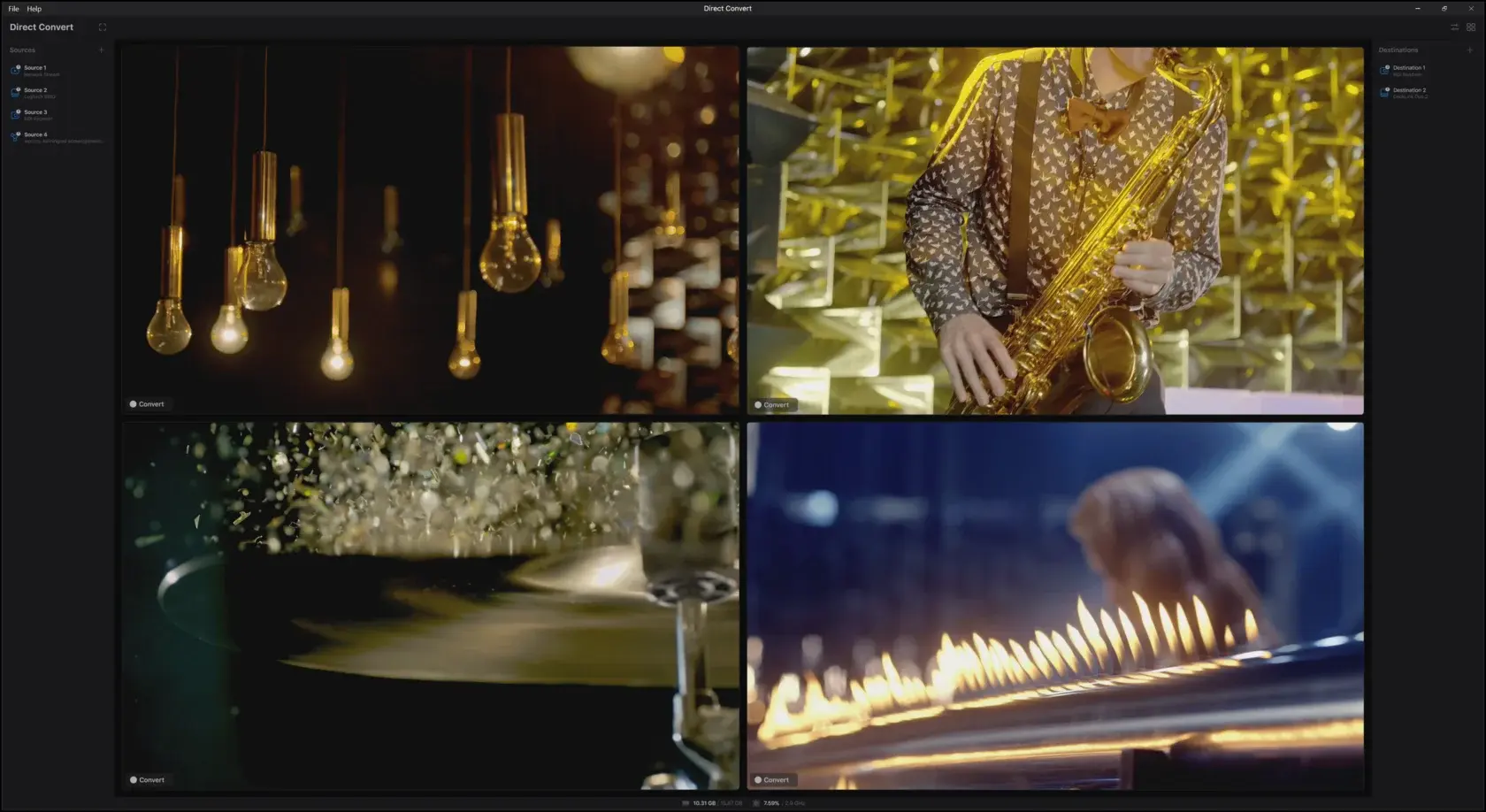
Built for controlled conversion workflows
Direct Convert is designed around a simple operating model: configure one or more sources, configure one or more destinations, assign sources to destinations through channels, and start conversion.
Sources
Add the input signals you need for conversion.
Channels
Preview sources, select destinations, start conversion, and monitor status.
Destinations
Create SDI or NDI outputs and configure conversion parameters when needed.
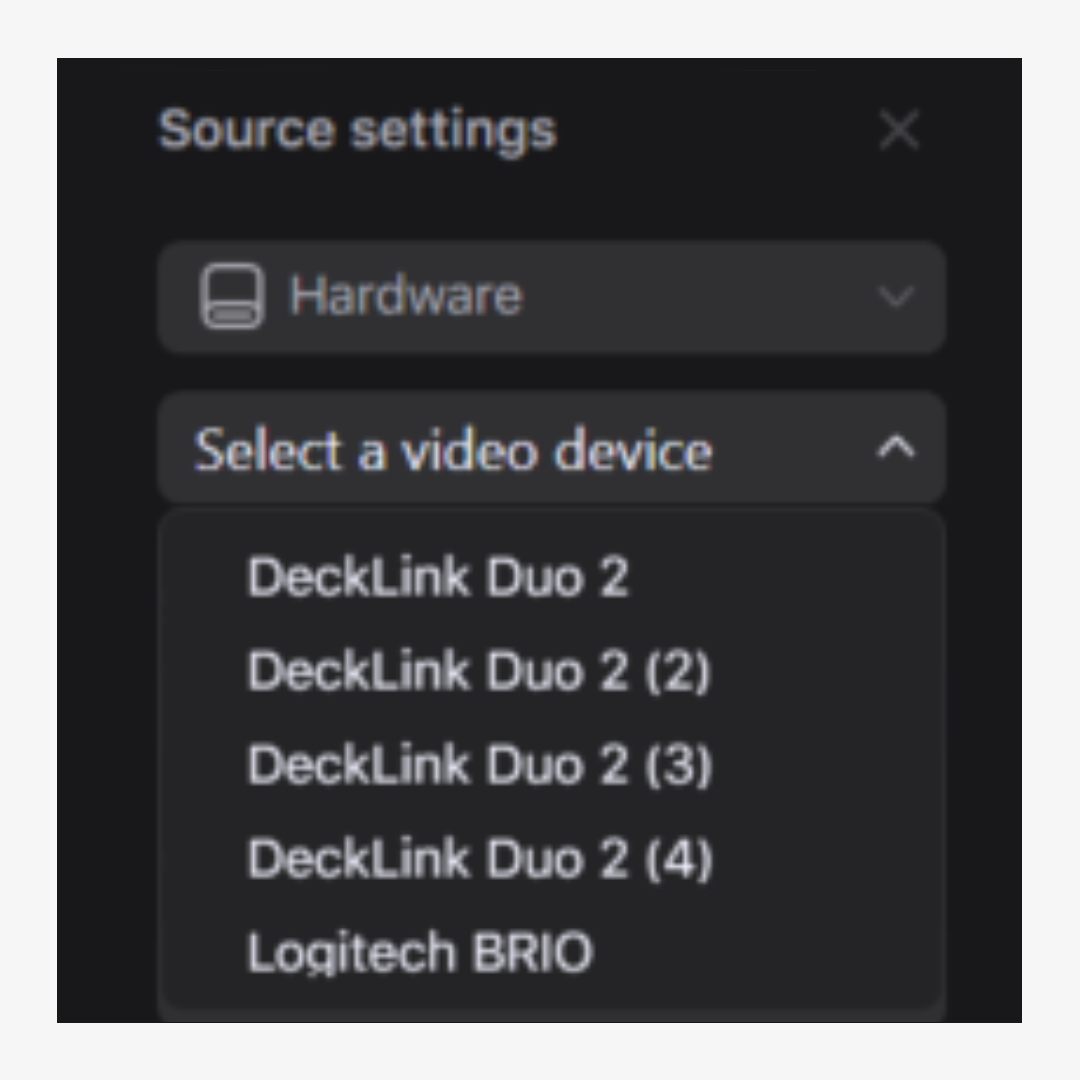
Bring in the sources already used in your facility
Direct Convert supports hardware devices, NDI sources, Medialooks Video Transport feeds, network streams, and WebCapture sources.
AJA, Bluefish, Decklink, Deltacast, Magewell, Yuan, web cameras, and other DirectShow devices.
Available NDI sources on the machine running Direct Convert.
Feeds from the Medialooks Video Transport application.
RTMP, RTSP, UDP, SRT, RIST, YouTube, IP cameras, and other public or local network streams.
Internet pages used as video sources.
Send sources to SDI or NDI outputs
Destinations define where converted sources are sent and how output parameters are configured. Operators can create SDI or NDI destinations, name each destination, and assign one or multiple destinations to a channel.

Convert signal parameters at the destination
When a destination requires a different signal format, Direct Convert can enable internal conversion for video and audio parameters during the source-to-destination workflow.
Preview, assign, and monitor each conversion channel
Channels are the operational panels for Direct Convert. Each channel lets the operator select a source, preview it, choose one or more destinations, start conversion, and monitor the process.

Channel layout selector
1, 4, 9, or 16 channels displayed simultaneously
Duration, input frame rate, output frame rate, breaks, and drops
Enable preview and select the audio preview renderer device
Control source format, audio, sync, and fallback behavior
Source settings give engineers control over the input format and source behavior before it is assigned to a destination.
Video format selection and auto-detection for most sources
Input line selection for capture devices, such as SDI or HDMI
Embedded audio by default, with optional external audio source selection
Overall audio gain adjustment
Audio/video synchronization adjustment
Custom No Signal image placeholder
Minimal buffer for network streams and WebCapture sources
Add overlays directly to sources
Direct Convert can apply up to five overlay items to each source. Overlays can be used for text, dynamic metadata, images, and video.
Overlay types
Dynamic placeholders


Tune Direct Convert for control-room operation
Preferences let operators adjust preview behavior, monitoring visibility, startup behavior, stream validation, multiview output, and log file location.